> For the complete documentation index, see [llms.txt](https://docs.k3-labs.com/introduction/llms.txt). Markdown versions of documentation pages are available by appending `.md` to page URLs; this page is available as [Markdown](https://docs.k3-labs.com/introduction/connect-your-ai-tool/k3-mcp-server.md).
# K3 MCP Server
The K3 MCP server connects your AI coding assistant — Claude, Cursor, VS Code, Windsurf, and others — directly to K3's blockchain automation platform.
Once connected, you can describe what you want in plain language and your AI assistant will build, deploy, and manage live blockchain workflows for you. Ask it to *"send me a daily report on my Uniswap pool"*, or *"alert me on Telegram whenever this wallet moves more than 10 ETH"* — and it will handle the rest: finding the right data source, constructing the workflow, deploying it, and verifying it runs.
Without the MCP, building these automations requires navigating the K3 UI step by step. With the MCP, your AI assistant does it conversationally, in seconds.
***
### What You Can Do
* **Build workflows from natural language** — describe the automation you want, and your AI builds it
* **Deploy and run workflows** — launch automations and trigger manual test runs instantly
* **Monitor on-chain data** — track wallets, tokens, DeFi pools, smart contracts, and NFT collections
* **Search existing templates** — find pre-built workflows and adapt them to your needs
* **Manage your team's integrations** — see which data sources (TheGraph, CoinGecko, etc.) are connected
***
### Prerequisites
You'll need a K3 API key before connecting.
1. Log in to your K3 account
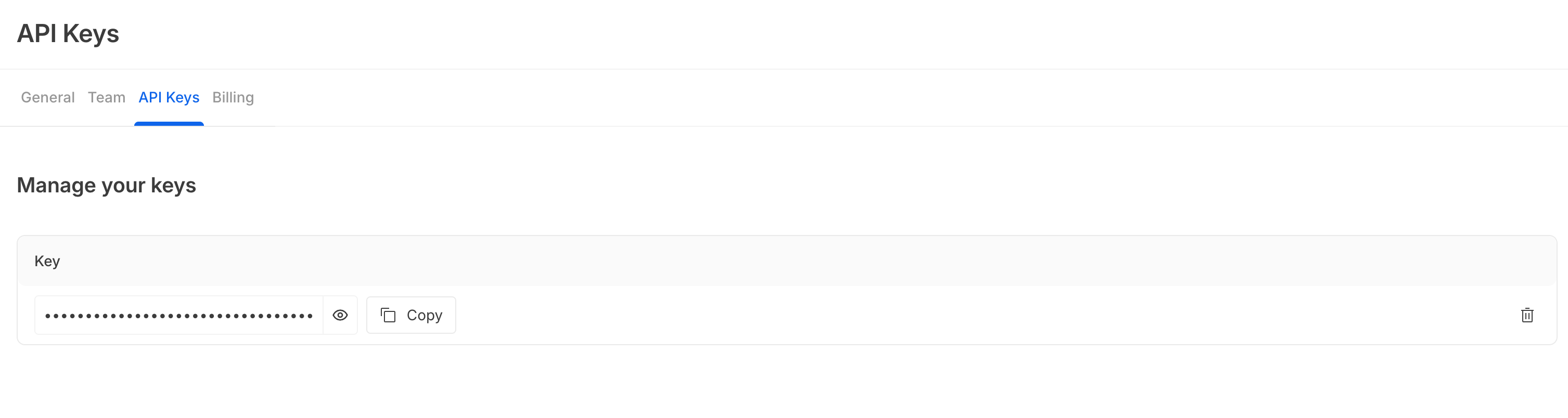
2. Go to **Settings → API Keys**
3. Click **Create API Key**, give it a name, and copy the key
> Keep your API key secure. Do not commit it to version control.
***
### Setup Instructions
#### OpenClaw
1. Open your OpenClaw config file at `~/.openclaw/openclaw.json`
2. Add the `mcpServers` block inside your agent, replacing `your-api-key-here` with your K3 API key:
```json
{
"agents": {
"main": {
"model": "anthropic:claude-sonnet-4-20250514",
"mcpServers": {
"k3": {
"command": "npx",
"args": [
"mcp-remote",
"--header",
"x-api-key:${K3_API_KEY}",
"https://k3-backend-bcg2tu5n4q-uc.a.run.app/v1/mcp"
],
"env": {
"K3_API_KEY": "your-api-key-here"
}
}
}
}
}
}
```
3. Save the file and restart the Gateway:
```bash
openclaw gateway restart
```
OpenClaw will connect to the K3 server and discover its tools on startup. You can verify by running `openclaw logs --tail 20` and looking for a line like `MCP server "k3" connected`.
***
#### Claude Desktop
1. Open your Claude Desktop config file:
* **macOS**: `~/Library/Application Support/Claude/claude_desktop_config.json`
* **Windows**: `%APPDATA%\Claude\claude_desktop_config.json`
2. Add the following, replacing `your-api-key-here` with your K3 API key:
```json
{
"mcpServers": {
"k3": {
"command": "npx",
"args": [
"mcp-remote",
"--header",
"x-api-key:${K3_API_KEY}",
"https://k3-backend-bcg2tu5n4q-uc.a.run.app/v1/mcp"
],
"env": {
"K3_API_KEY": "your-api-key-here"
}
}
}
}
```
3. Save the file and restart Claude Desktop
***
#### Claude Code
Run the following in your terminal, replacing `your-api-key-here` with your K3 API key:
```bash
claude mcp add --transport http k3 \
https://k3-backend-bcg2tu5n4q-uc.a.run.app/v1/mcp \
--header "x-api-key: your-api-key-here"
```
Or add it manually to your project's `.mcp.json`:
```json
{
"mcpServers": {
"k3": {
"command": "npx",
"args": [
"mcp-remote",
"--header",
"x-api-key:${K3_API_KEY}",
"https://k3-backend-bcg2tu5n4q-uc.a.run.app/v1/mcp"
],
"env": {
"K3_API_KEY": "your-api-key-here"
}
}
}
}
```
***
#### Cursor
1. Open **Cursor Settings → MCP → Add new global MCP server**
2. Paste the following configuration:
```json
{
"mcpServers": {
"k3": {
"command": "npx",
"args": [
"mcp-remote",
"--header",
"x-api-key:${K3_API_KEY}",
"https://k3-backend-bcg2tu5n4q-uc.a.run.app/v1/mcp"
],
"env": {
"K3_API_KEY": "your-api-key-here"
}
}
}
}
```
3. Save and restart Cursor
To share the configuration with your team, add it to `.cursor/mcp.json` in your project root.
***
#### VS Code (GitHub Copilot)
1. Create or edit `.vscode/mcp.json` in your workspace:
```json
{
"servers": {
"k3": {
"type": "stdio",
"command": "npx",
"args": [
"mcp-remote",
"--header",
"x-api-key:${K3_API_KEY}",
"https://k3-backend-bcg2tu5n4q-uc.a.run.app/v1/mcp"
],
"env": {
"K3_API_KEY": "your-api-key-here"
}
}
}
}
```
2. Open the Command Palette (`Cmd+Shift+P` / `Ctrl+Shift+P`) and run **MCP: List Servers**
3. Select **k3** and click **Start Server**
***
#### Windsurf
1. Open **Windsurf Settings** (`Cmd+,` on Mac) and search for **MCP**
2. Click **View raw config** to open `mcp_config.json`
3. Add the K3 server configuration:
```json
{
"mcpServers": {
"k3": {
"command": "npx",
"args": [
"mcp-remote",
"--header",
"x-api-key:${K3_API_KEY}",
"https://k3-backend-bcg2tu5n4q-uc.a.run.app/v1/mcp"
],
"env": {
"K3_API_KEY": "your-api-key-here"
}
}
}
}
```
4. Save and restart Windsurf
***
#### Other Tools
If your AI tool supports MCP but isn't listed above, use these settings:
| Setting | Value |
| --------------- | ---------------------------------------------------------------------------------------------- |
| **Command** | `npx` |
| **Arguments** | `mcp-remote --header x-api-key:YOUR_API_KEY https://k3-backend-bcg2tu5n4q-uc.a.run.app/v1/mcp` |
| **Environment** | `K3_API_KEY=your-api-key-here` |
***
### Available Tools
Once connected, your AI assistant has access to the following K3 tools:
| Tool | What it does |
| ------------------------------- | ----------------------------------------------------- |
| `generateWorkflow` | Build a workflow from a natural language description |
| `editGeneratedWorkflow` | Continue refining a workflow with the K3 orchestrator |
| `executeWorkflow` | Run a workflow manually to trigger an immediate test |
| `getWorkflowById` | Retrieve a workflow's full configuration and details |
| `getWorkflowRuns` | List the execution history for a workflow |
| `getWorkflowRunById` | Inspect a specific run's output and status |
| `updateWorkflow` | Pause or unpause a scheduled workflow |
| `findAgentByFunctionality` | Search for existing workflow templates by use case |
| `listAgentTemplates` | Browse all available pre-built templates |
| `getAgentTemplateById` | Get full details on a specific template |
| `listTeamMcpServerIntegrations` | See which data sources your team has connected |
| `listMcpServerIntegrations` | Browse all available MCP data source integrations |
***
### Troubleshooting
**Connection fails immediately**
Make sure `npx` and Node.js are installed and up to date:
```bash
node --version # should be v18 or higher
npx --version
```
**Authentication error (401)**
* Verify your API key is correct and hasn't been revoked
* Check that there is no space between the colon and your key in the `--header` argument: `x-api-key:YOUR_KEY` (not `x-api-key: YOUR_KEY`)
**Tools not appearing in my AI assistant**
* Restart the application after saving the configuration
* Confirm the JSON is valid — a missing comma or bracket will silently prevent the config from loading
* Clear cached MCP auth data and try again: `rm -rf ~/.mcp-auth`
***
### FAQ
**Is the API key stored securely?**
Your API key lives in your local MCP configuration file and is sent as a request header to the K3 server. It is never stored by `mcp-remote`. Treat it like a password — avoid committing it to version control.
**Can I create multiple API keys?**
Yes. Go to **Settings → API Keys** to create keys with different names. To switch keys, update the `K3_API_KEY` value in your MCP config.
**Can I revoke a key?**
Yes. Go to **Settings → API Keys** and delete the key. The K3 server will immediately reject any requests using it.
**Can I share this config with my team?**
You can share the config file structure, but each team member should use their own API key. Avoid committing keys to shared repositories — use environment variables or a secrets manager to inject them.